Wednesday, 20 May 2015

Work Flow for creating a QR Code on the iPads.

Work Flow of creating a QR Code:

Firstly create your video.
Today we are using Chatterpix to make our orange speak.

1. Once you have created your movie in any application you need to export it to the Camera Roll ( or you can export it straight to Dropbox if the application has that feature)
2. Open Dropbox - Add the video to dropbox


3. Click the "up arrow" on the right hand side and click "Copy link"
4.  Open the App "Qrafter"


5.  Click "Create" at the bottom of the screen. 
6.  It will create a unique QR code.
7. Press the "up arrow" icon to save the image to the camera roll. 


 8. Insert the image into Pic Collage to add headings, words, pictures...
9. Add the collage into Dropbox and print from your computer. 

Wednesday, 6 May 2015

Creating QR Codes

Creating QR Codes
On the iPad
1 Drop the videos into a folder in the dropbox app. 
Create A Dropbox Shared Link
  1. Sign in to your Dropbox account through the Web (probably easier on computer so that you can print them out)
  2. Click on the file you want to share.
  3. Select “Share Link” from the action bar across the top
  4. A pop-up appears – click on “Get Link”
  5. You will then be shown a preview of your file. Copy the link from your browser’s address bar to use when you create your QR code (below)


Create Your QR Code
  1. Go to www.qrstuff.com
  2. Choose the “Dropbox” data type.
  3. Paste the link from Step 5 above into the box provided.
  4. Download your QR code. Done!


Example letter I have sent to parents to explain QR codes. 

Dear Parents

At ______ Pre Primary we would love to share students work with you and as many of these special moments are captured via photos, video and audio we have decided to use QR codes to share students work. This will allow you to  download your child’s work right onto your phone/ iPad. 

For those that are unfamiliar to Qr codes don't worry, I’m sure you have seen QR (quick response) codes on packaging and magazines.  What they do is link you to useful information on the web. Therefore rather that typing in a long web address all you need to do is scan and you’re away. 

Phones and iPads don't come with a built in QR reader, so you will need to download one from the app store. There are many free apps that will work fine. 

Next you'll need to find a QR code to scan and open the app. Most Apps will just require you to hold the camera over the square code and it will automatically direct you to the required webpage. 

Our Kindy QR codes will direct you to a form of cloud storage such a Dropbox. From here a download button will appear and you will need to press this to download it onto your own device. 


Wednesday, 22 April 2015

Online communication with parents


Today we were discussing how to engage reluctant parents or provide digital communication to parents. The use of text message reminders and other forms of communication were discussed.

Fresh Grade might be what you are looking for.  This is an app and a website where you can capture, document and communicate with parents.

The app allows you to take a photo or video, add a comment and instantaneously push it out to the parents app (Parents who don't have smart phones can log on through the web).

This is an example of what the parents would see.

Let me know if this is something you may be interested in looking at further.

Week 1 Term 2 lessons

Welcome back to term 2 everyone,

Todays lessons were great.
Debs class are creating a slideshow of letters in "30 hands". Students are drawing the letters and recording their voice on each slide. Students are building up to be able to do this independently and the aim is to create enough slides to cover the whole alphabet.

Deb -  the App we discussed was "Chatterkids", this is a free app that allows you to add a mouth to an image. The mouth moves when the student adds their own voice to it.


Hayley's class were learning about ANZAC day, students were introduced to "Book Creator" and drew pictures depicting part of the ANZAC story. The next step was to add audio to the page and describe any information they knew about ANZAC day. 


Alison's class also used "Book Creator" today. Students took a photo of a picture they had drawn recounting their holidays and cropped the picture to exclude the writing.  Students then added a typed heading and narrated their recount. 

Sarah's class used "Pic Collage" to explore synonyms relating to emotion. Students took photos of themselves showing a specific emotion and added text. 
These were transferred into dropbox so that they can be printed and displayed around the classroom  as a writing prompt. 

Thursday, 19 March 2015

Harmony Day / 19th March


Overall everyone is  super keen, with amazing ideas. Most teachers are working along similar ideas and everyone is finding it easier to allocate students certain iPads, so that all their work can be stored in one place. The idea of creating a book in Book Creator that holds all the students is great and will help with sharing this work with parents.

I have put some information about Padlet, a website that students can collaborate on in the resources section of this site. Jude and I were discussing it yesterday.

Em


Padlet


What is Padlet? 
Padlet is a virtual wall that allows people to express their thoughts on a common topic easily. It works like an online sheet of paper where people can put any content (e.g. images, videos, documents, text) anywhere on the page, together with anyone, from any device.
As it’s web based you can have students on computers or iPads all collaborating together. All you need to do is give your students the URL. 

Once signed in you have the following options:
Customise the wall title and description.
Customise the background (wallpaper).- By creating an image such as a KWL you can add it as the background to structure students comments. 


You can also choose how your posts will appear. Choose Freeform if you want students to be able to place posts in a chosen spot. e.g. label a map or in a KWL.

Use Grid if you don't want the posts overlapping and use stream for the most recent post to jump to  the top. Stream is a great way to have a blog experience without students having login’s. Use it for collaborative Chapter reviews for example. 


Examples:


Thursday, 5 March 2015

Week 6 Classroom Lessons

Hey FLDC crew, 

Again massive thank you for being prepared and trying out the apps between sessions. As some of you have found by revisiting the same apps again it has helped to consolidate the students knowledge. The process then becomes more about the learning objective and less about the tech side of it. 

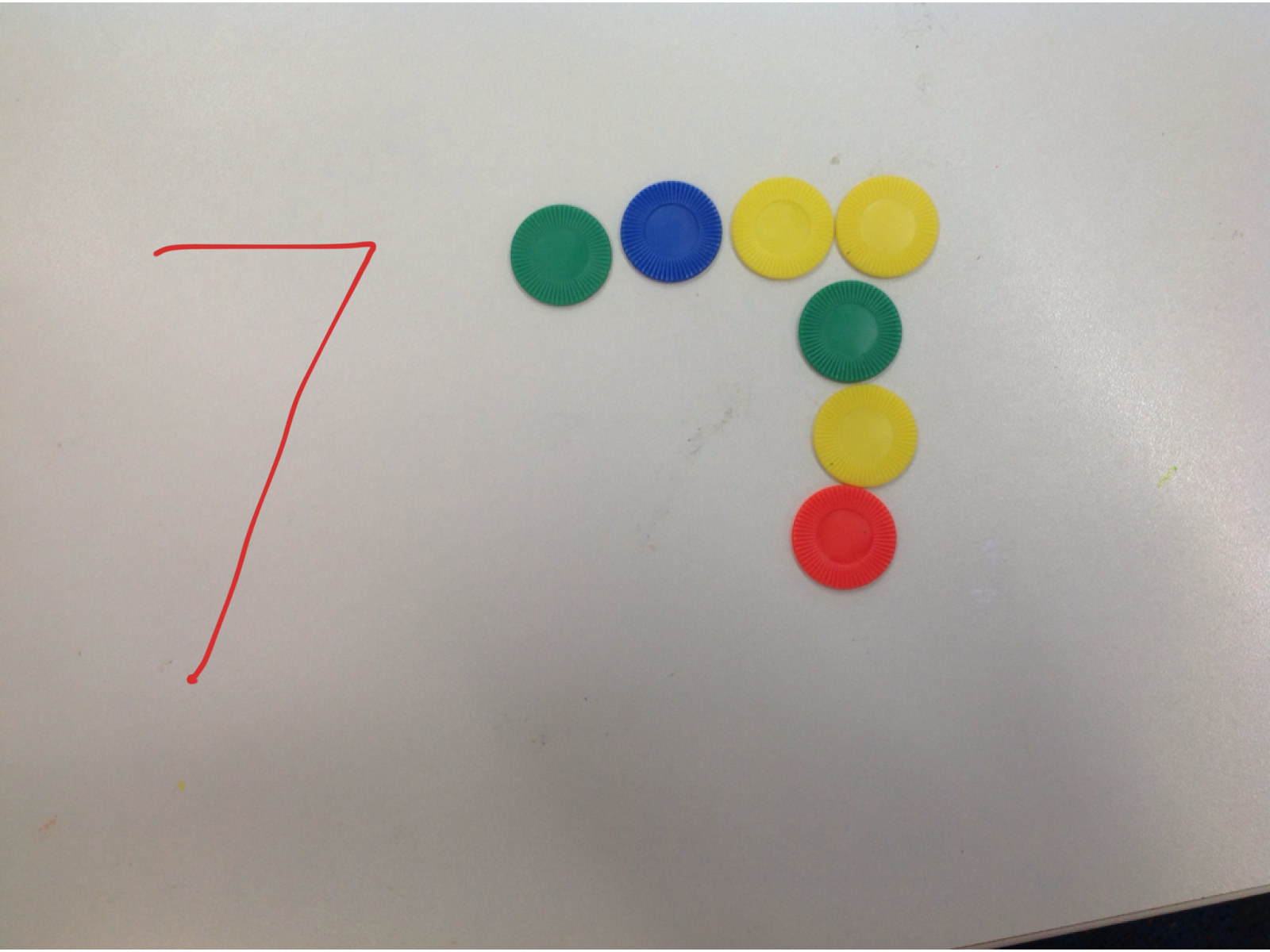
Hayley’s class have been focusing on numbers to 10, the students used “Showme” to record their voice and record drawing the numbers. 
In groups students first made the number with counters and took a photo of it. Then in "Showme" they recorded their voice “this is the number 7” and drew the number on the page. 

( We had a few small glitches in the app, with the writing not appearing. I'll check it out this week)
Overall it was a great way to record writing and speaking at the same time. 


Lucy was working on pronouns- Lucy had the students using Puppet Pals to explain who is holding what toy. "He is holding a Green car."

Puppet Pals allowed for students to listen back to their recordings and save the recordings as evidence if needed.

Deb's class have been cooking 2 minute noodles. We used Pic Collage to sequence the photos and they are putting them in Book Creator. Once in Book Creator the students will record their voice to explain the process.

Deb and I also looked at Air Drop- this is only available on the new iPads in A block, it allows you to send photos via bluetooth. Therefore taking photos on 1 iPads can easily be sent to the other 3 iPads in your class. C block will need to use Dropbox to share photos and work.

Alison's class created a Pic Collage after a picture sort. Students had to take photos, import them to Pic collage and write their name. 
Creating a Popplet such as the example below could be another option to display this kind of language work. 
Pic Collage student work 
Popplet Example

Lucy's class consolidated their knowledge of Puppet Pals and retold a different story. Using the App for a second time the students showed a lot more independence and it allowed students to push ahead quickly if they were confident with the App. As students were quite independent it allowed students to move outside to a quiet recording area so that they had less background noise. 


Jude's class ( Sorry I forgot to grab a photo) retold the story of Mr Gumpy using Puppet pals.  Students worked in 3 groups and some students even tried to add expression and character voices. 
Each group created a great first try, I can't wait to see what else they create next week.